

Configuring OAuth
Using OAuth requires configuration in the Turnkey Dashboard and in your app.Enabling OAuth
Navigate to the Wallet Kit section in the Turnkey Dashboard and enable OAuth. If you have not enabled the Auth Proxy, enable it first. See Getting Started for details.
Configuring OAuth providers
Enable the providers you want to use under Social logins.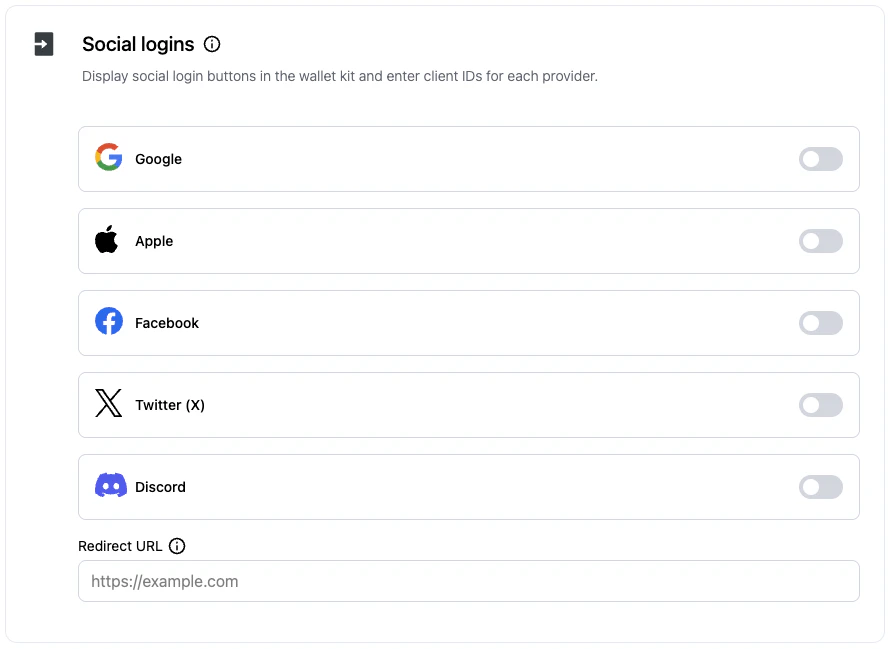
Client IDs
You can enter client IDs for each provider and the redirect URL directly in the dashboard: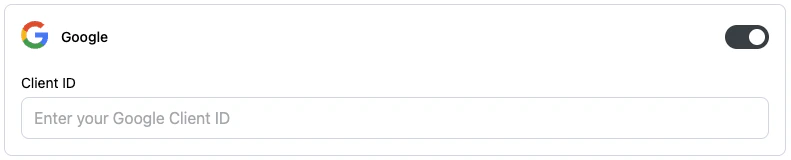

TurnkeyProvider.
For OAuth 2.0 providers, you will need to upload the client ID and secret in the dashboard. See the OAuth 2.0 providers section below for details.
Client configuration
If you prefer configuring via code, provide your client IDs and optional redirect URI throughTurnkeyConfig.authConfig.oAuthConfig, and set an appScheme to complete deep links.
lib/main.dart
App scheme configuration (deep links)
Register your app scheme on each platform to complete the OAuth flow.iOS (Info.plist)
ios/Runner/Info.plist
Android (AndroidManifest.xml)
android/app/src/main/AndroidManifest.xml
myapp with your actual scheme and ensure it matches appScheme in TurnkeyConfig.
Usage
Call the helper for each provider from yourTurnkeyProvider instance: handleGoogleOauth, handleAppleOauth, handleFacebookOauth, handleDiscordOauth, and handleXOauth.
lib/screens/social_logins.dart
Provider details
OAuth providers
- Dashboard: enable Google in Wallet Kit → Authentication.
- Client ID: Web client ID from the Google developer console, set in the Dashboard or via
OAuthConfig.
Apple
Requirements:- Dashboard: enable Apple.
- Client ID: Apple Services ID, set in the Dashboard or via
OAuthConfig. - Redirect URI must match your configured value (e.g.,
myapp://).
- Dashboard: enable Facebook.
- Client ID: set in the Dashboard or via
OAuthConfig. - Redirect URI must match your configured value (e.g.,
myapp://).
OAuth 2.0 providers
For providers that use OAuth 2.0 (e.g., X, Discord), configure additional settings in the Turnkey Dashboard. In Wallet Kit → Socials, click Add provider.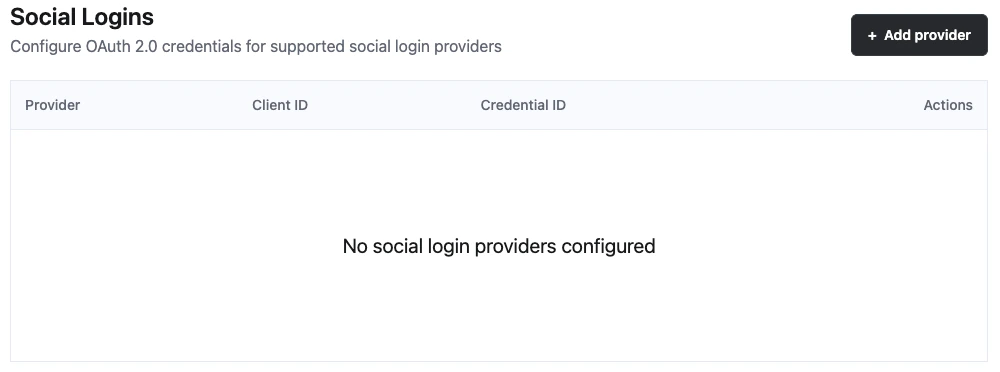
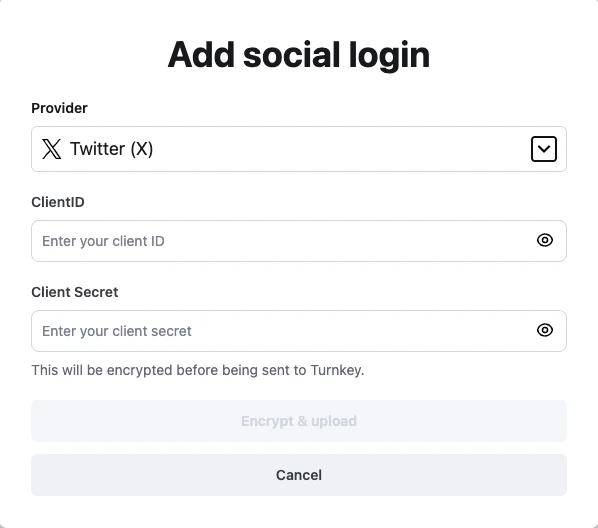

OAuthConfig.
Discord
Requirements:- Dashboard: enable Discord (OAuth 2.0).
- Client ID: set in Dashboard or via
OAuthConfig. - Redirect URI must match your configured value (e.g.,
myapp://).
X (Twitter)
Requirements:- Dashboard: enable X (OAuth 2.0).
- Client ID: set in Dashboard or via
OAuthConfig. - Redirect URI must match your configured value (e.g.,
myapp://).